Git Worktree Explained: Parallel Branches Without Clones
Git worktree lets you check out several branches at once, each in its own folder. Learn how it works, how it differs from a clone, and how to set one up.
Tuesday, 4:12 p.m. Two agents start in one checkout. One edits a login form. Another rewrites test fixtures. A branch switch lands mid-edit. Files change under the first agent. Work gets tangled fast.
Why Do Parallel Agents Overwrite Each Other's Changes?
Parallel agents overwrite each other because they share one working directory, even when they target different branches. A constructed walkthrough shows the trap. You can rerun it. Start one agent on feature/login. Start another in the same folder. The first agent edits files. Nothing gets committed yet. The second agent needs its own branch. It runs a switch. Git may refuse. Uncommitted edits can conflict with the target branch, so Git stops the switch rather than discarding changes that exist only in the working files on disk.
The obvious fix sounds sound. Give each agent a branch. Switch between runs. Run git switch -c feature/login for one task. Run git switch main for another. Each switch rewrites files. The folder can't hold both checkouts. A stash hides the problem. It doesn't remove it. You still restore work later. You still risk restoring it onto the wrong branch, and an agent that stashes another agent's edits creates a cleanup job that no branch name can explain afterward.
A branch names history. Files sit in a directory. That gap causes the failure. Advice on running multiple AI agents can cover coordination, but coordination can't give one folder two contents at once. Parallel agents need separate working directories, not separate branches.
What Separates a Linked Worktree From a Branch and a Clone?
A linked worktree is a second working directory attached to the same repository, while a branch only names a line of history. A non-bare repository has one main worktree plus zero or more linked worktrees. Each keeps its own state. Git worktrees became an official Git capability with Git 2.5, released on July 27, 2015, according to Git Rev News edition 5. The feature replaced a fragile, Unix-only script. Core Git gained git worktree add. Parallel checkouts became portable.
| Feature | Branch in one checkout | Linked worktree | Separate clone |
|---|---|---|---|
| Working directories per repository | One | One main plus zero or more linked | One per clone |
| Branches checked out at the same time | One | One per worktree | One per clone |
| Own HEAD and index | No, one shared pair | Yes, one per worktree | Yes, one per clone |
| Repository data | Single repository | Shared with the main worktree | Separate repository structure |
| Create command | git switch -c new-branch |
git worktree add ../path branch |
git clone url |
| Leave the checkout | git switch to another branch |
git worktree remove ../path |
Delete the folder |
Picture desks, not databases. A linked worktree is a second desk in one office, sharing the filing cabinet. A clone is a second office. It gets another cabinet. Pick by need. Switch branches for serial work. Add a worktree for simultaneous checkouts, a pattern that also shapes how coding agents get isolated folders. Clone for a separate repository copy.
What Does Each Worktree Keep Separate, and What Does It Cost?
Each worktree keeps its own HEAD and index, while repository history stays shared. The Git worktree documentation states that a linked worktree has its own per-worktree state, including HEAD and the index. Staging stays local. Branch switches stay local. One agent can stage a login change while another stages test fixtures, and neither action changes the checkout state that the other agent sees in its own folder.
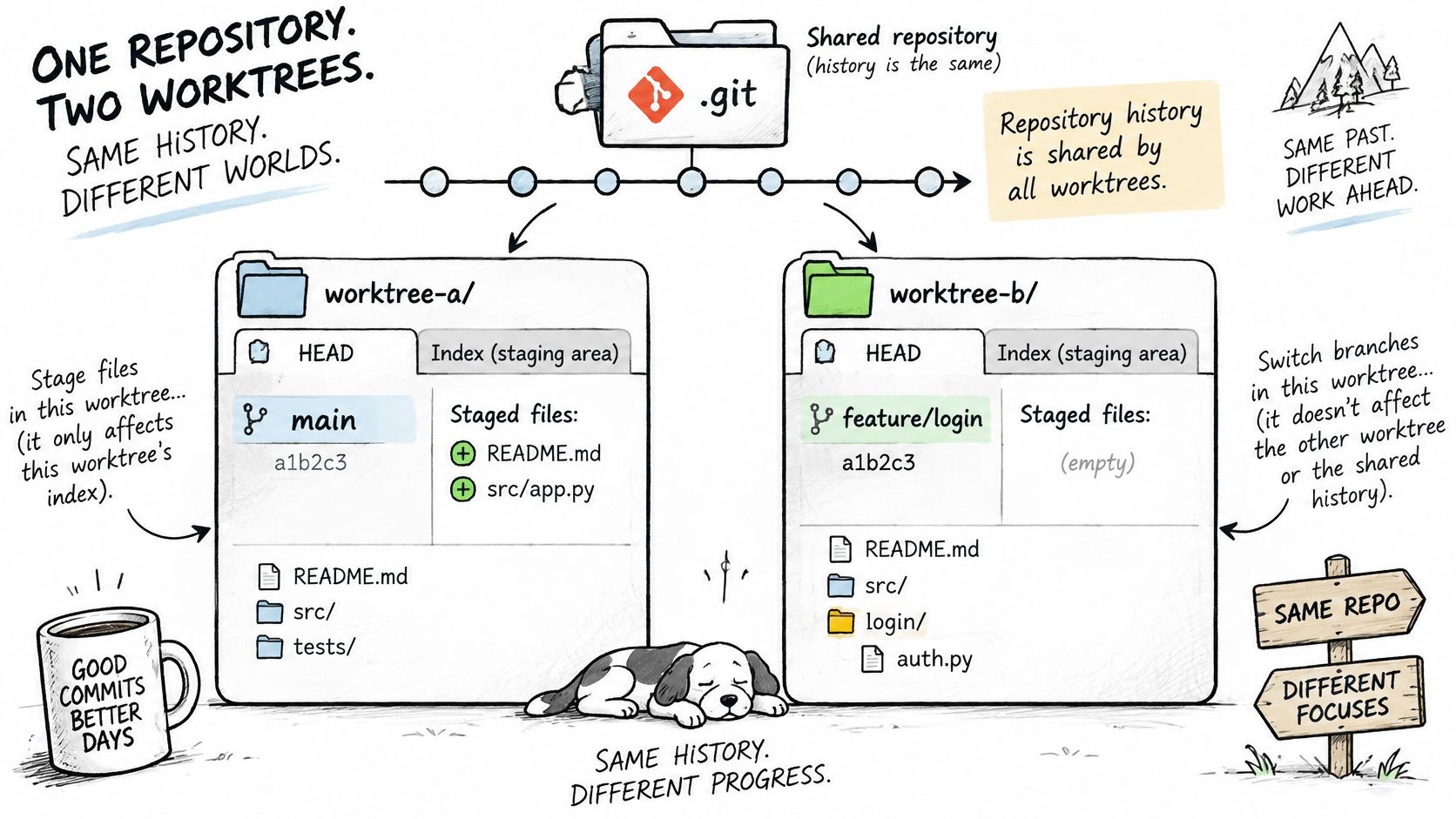
Separation costs disk. Every folder holds source files. Every folder holds uncommitted changes. Build output multiplies. Installed dependencies multiply too. Git keeps checkouts apart by design. You pay for that design. Forgotten folders keep their files. Cleanup becomes routine work. Avoiding a fresh clone saves setup work, but a worktree still needs dependency installs and build artifacts before tests or tools in that folder can run normally.
AuricIDE runs each agent as a PTY child process started in a given directory. The worktree path becomes that directory. Success or failure comes from exit status. Attention ranks error, then blocked-on-input, then stalled. The desktop workspace combines an editor, agent panel, backlog, requirements, terminal, and Git in one window. Project data sits in a SQLite file inside the repository, and no claim gets made here about that file across linked worktrees. Git commands create the worktree. Guidance on local AI agents covers the local run model.
How Do You Create a Linked Worktree for Each Agent?
git worktree add creates the second directory, and its branch argument decides whether the folder holds an existing branch or a new one. Put folders beside the main checkout. Names should show the task. Paths should stay obvious. A sibling layout keeps git worktree list easy to scan when several agents run and you need to match each running process to a folder and a branch quickly.
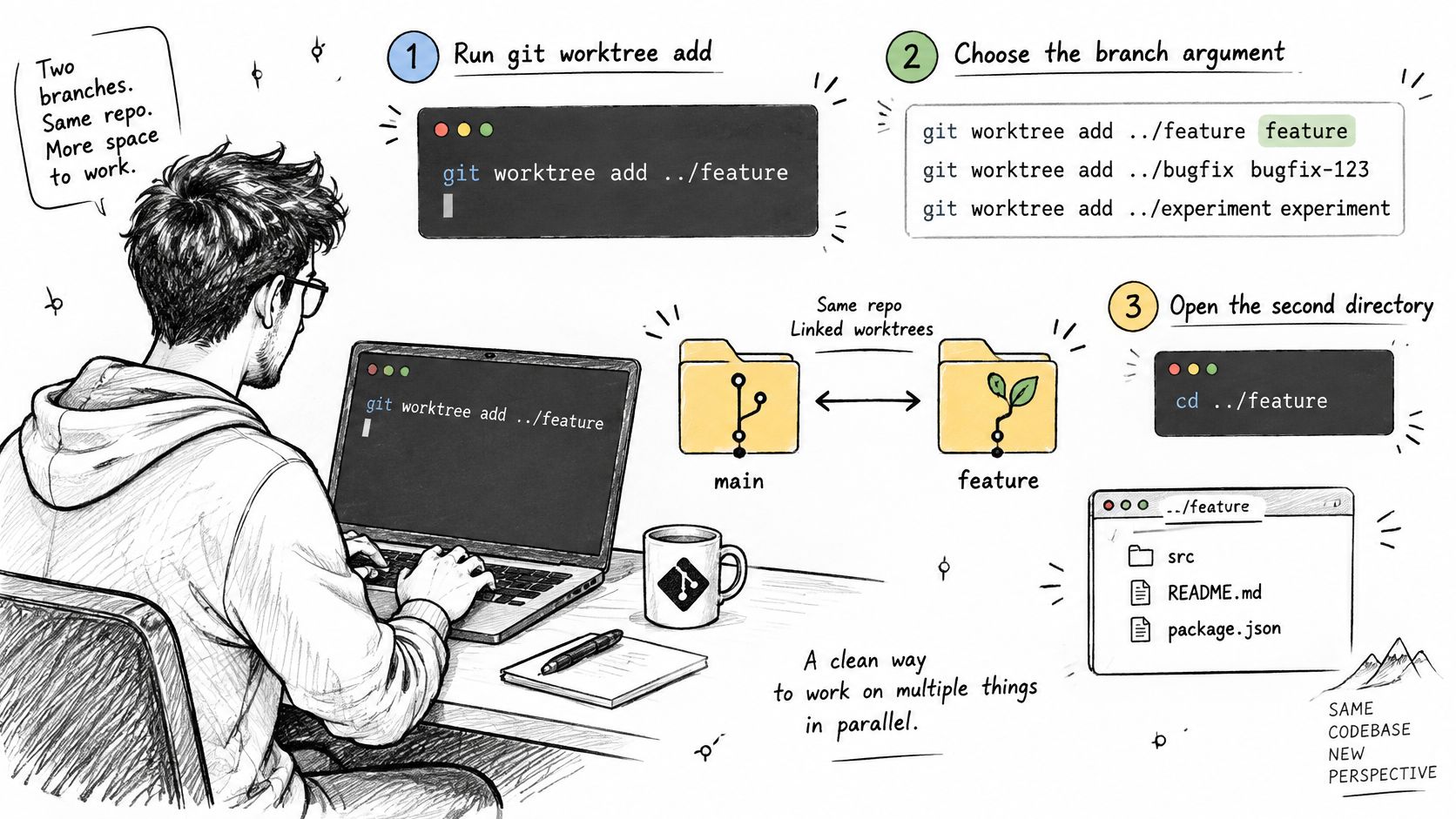
- Run
git worktree add ../shop-login feature/loginfor an existing branch. The agent edits there. Your main checkout stays untouched. - Run
git worktree add -b fix/tests ../shop-tests mainfor a new branch frommain. Don't reuse a held branch. Git refuses that checkout. Its error names the other folder. Pick another branch. Or remove that folder. - Run
git worktree listbefore launching anything. Check each path. Check each branch. Check each commit. Mismatches show up early. - Start each agent inside its own folder. Don't reuse an open terminal. A terminal in the main checkout sends edits back into shared files.
Launch check: path, branch, and commit should match the task before an agent starts.
How Do You Remove a Worktree Without Losing Work?
git worktree remove deletes the folder and Git's record of it, but Git refuses while uncommitted changes remain. That refusal protects work. Treat it as a stop sign. Don't reach for force. A finished agent can leave staged edits, unstaged edits, or new files that look unimportant until a missing fixture or config change breaks the branch after removal.
- Commit the agent's changes in its folder. Stash them if review comes first. Nothing should exist only on disk. Adding
--forcediscards uncommitted changes. - Merge the finished branch. Then run
git worktree remove ../shop-login. Git deletes files and registration together. - Run
git worktree pruneafter manual folder deletion. Prune clears stale records. A stale record keeps a branch marked as held. Later checkouts can fail.
An agent may stop mid-task. Read its exit status first. Inspect its folder next. Remove nothing yet. Unfinished work may still be useful.
Should Each Parallel Agent Get Its Own Worktree?
Yes, when an agent edits files while another agent works in the same repository. A lone agent gains little. A short single task gains little. Extra folders add cleanup. That cleanup is annoying. Dependencies pile up. Branches get forgotten.
A second folder earns its place when two edits must stay checked out at the same time, because switching one checkout back and forth forces stashes, restores, and file rewrites that interrupt both tasks. Small projects may not justify the routine. Read-only review may not need one. A quick command may not either. git worktree list gives the check. One line should match each active agent. Each folder should change only its own branch. Extra lines mean cleanup is overdue. Missing lines mean an agent may be sharing a folder. Remove finished worktrees promptly. Keep branch names tied to folders. A branch names a line of work, a directory holds the files that work changes, and two agents can share history safely only after each one gets a directory of its own.
AuricIDE gives CLI coding agents one local workspace with terminals, Git, backlog, and requirements in view, so parallel runs started in separate worktrees stay visible in one place. Visit AuricIDE to see how a fleet view handles agents that need attention first.