The AI Agent Workspace: More Than an Editor with Panes
An AI agent workspace is not an editor with more panes. See how AuricIDE's Quick Access, Agents panel and Agent Console make project hops cheap.
The usual advice for an AI agent workspace is more layout: more panels, docking, saved arrangements. That advice fixes the wrong problem. Once agents do the typing, the developer is left with the checking.
Say three agents are working in three different projects. You are deep in a diff in the first one. An agent in the second has finished, or maybe it stopped to ask something, and the one in the third has gone quiet. From here, you cannot tell which. To find out you switch projects, open the terminal and read the output until it makes sense. Then the next project. When you return, the diff needs reading again from the top.
Why is a flexible layout the wrong fix?
Because a layout controls where tools sit, while the hard part is knowing which project deserves a visit. An agent workspace makes the hop between projects cheap and the state of every project readable at a glance. Extra editor panes do neither.
A flexible shell treats awareness as an arrangement problem. One terminal beside the editor only explains the open project. Terminals from several projects fill the screen with output streams, and each one needs reading before it can answer a simple question: does this agent need anything? Saved layouts put panels back where they were. Docking cuts down on dragging. Neither turns output into status. Neither shortens the search.
Checking stays part of the job because agents still miss. A recent benchmark found that AI agents passed the task rubric at 47.4%, compared with 80.7% for a human-in-the-loop baseline, with performance falling from 57.6% on easy tasks to 40.5% on hard tasks (benchmark details).
That benchmark is Workspace-Bench 1.0 (Tang et al., arXiv, May 2026), which tests agents on file-dependency tasks across professional roles, not on coding alone. The benchmark's best agent score reached 68.7%, and the benchmark measured an average of 563.1K tokens processed per task (agent workspace reliability benchmark). That is a long run behind every result, and each result still needs a reader. The 47.4% average and the 68.7% best score come from the first version of the paper. The latest revision, dated 14 May 2026, reports 43.3% for the average, about 60% for the best agent and the same 80.7% for the human baseline. Both versions show pass rates falling from 57.6% on easy tasks to 40.5% on hard ones (paper abstract). The benchmark does not test AuricIDE. Still, even the best result leaves work to inspect, so starting an agent is only the beginning.
Judging developer productivity tools this way comes down to one question: does the interface reduce inspection work, or does it only make panels movable?
What does AuricIDE put in its place?
AuricIDE puts cross-project awareness in three visible surfaces: Quick Access, the Agents panel, and the Agent Console. Quick Access handles the hop between projects, the panel keeps agent state beside the open project, and the Console shows the whole fleet together. The shell around them stays the same.
How does Quick Access make the hop cheap?
Starred projects appear as tiles on the start screen and in Mission Control. A tile can show a badge and an indicator for uncommitted changes, so a project shows its state before you switch to it. The open project is marked "(current)". One click on another tile switches.
The surface has two tabs. Recent lists the projects you happened to open. That is where starring happens. Quick Access holds the ones you chose to keep. With more than one project starred, the tiles sort by name or by badge. To unstar one, you press and hold its x. A stray click is not enough.
Mission Control is the cockpit. AuricIDE shows it when a project is open and no file has focus.
What do the Agents panel and the Console add?
The Agents panel groups agents by project. Needs attention comes first, at the top. Set aside stays at the bottom for agents you have parked, and those keep running. When agents are running and none need you, a green all quiet chip says so.
The Console answers the wider question. It opens as a full-screen overlay across every project, with a treemap whose project clusters are sized by agent count. Its header reads “N running across N projects · N need you · N done, unreviewed”, and one merged activity feed lists what happened across the fleet. The header gives the count. The treemap gives the location. Together they say where to look, and no terminal has to be opened first.
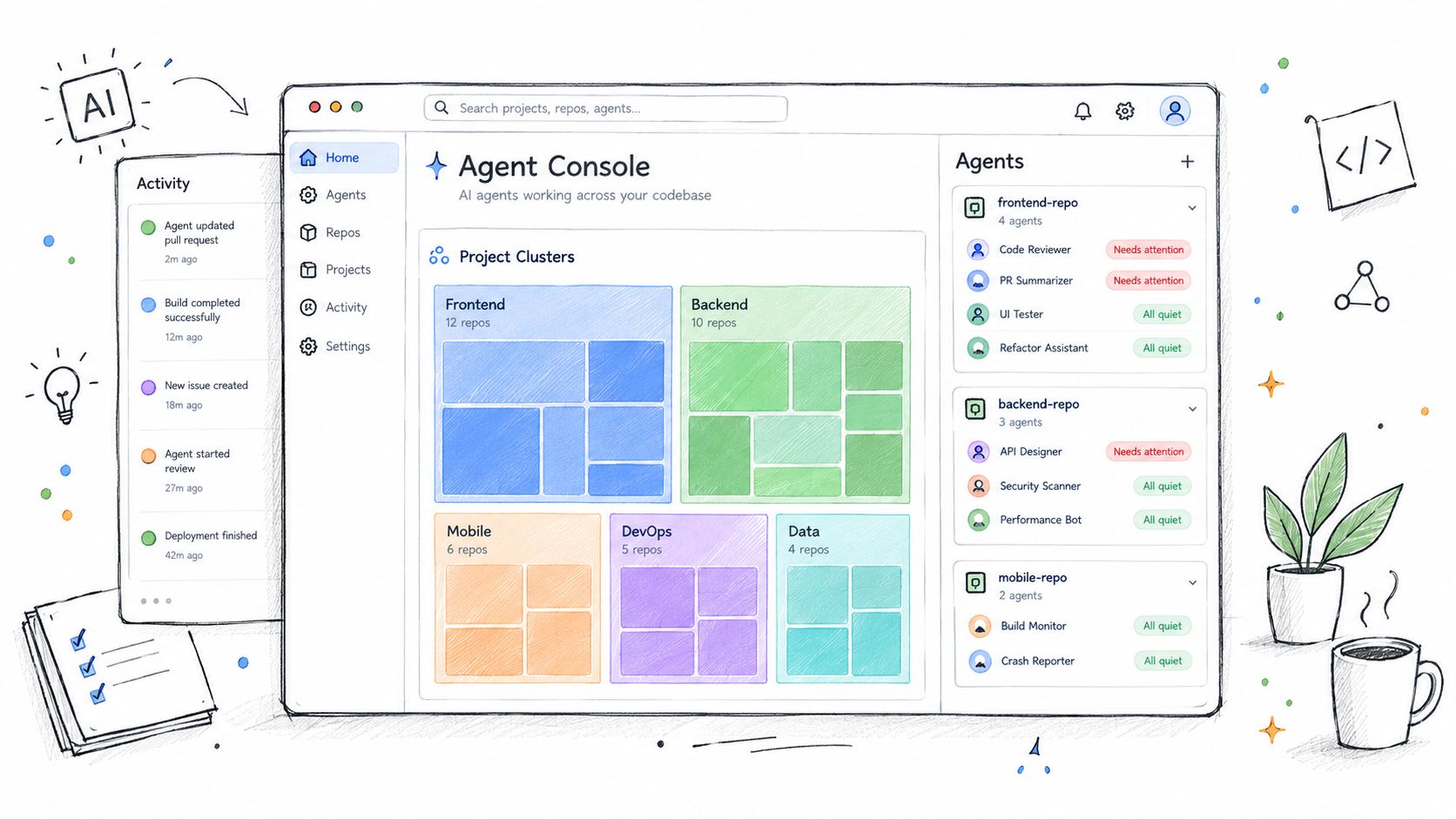
The Console opens from an icon in the Agents panel. The start screen has its own line that reports how many agents are running across how many projects, beside an Open Agent Console button. A setting named Open Agent Console on launch sits under Settings, Agent. When it is on, the Console opens instead of the start screen if agents are running and no project is open. It is off by default.
Why an agent lands under Needs attention is a separate story, told in agentic IDE architecture and fleet control. What a chain hands from one agent to the next is another, covered in agent context management.
What does a fixed shell cost?
A fixed shell costs personal window arrangements in exchange for a known shape at launch. Left, right and bottom panels resize and collapse, and that is all the layout control there is. AuricIDE has no docking, no split editor and no saved or named layouts. Panel sizes are not remembered across restarts. The editor and file tree show one project at a time. Switching replaces the open project, tabs included.
Someone with a tuned multi-terminal setup gives that up. In return, the same tools sit in the same parts of the window on every launch, so checking can begin without rebuilding an arrangement. AuricIDE made that call on purpose.
How does a fixed shell take in other agent CLIs?
Through a JSON provider config that the user imports, so the shell stays fixed while the set of agents stays open. Only crush is built in. Every other agent CLI arrives through Settings, Agent, Import Provider. The import checks the file. A valid provider registers at once, with no restart. An invalid file, a missing id or the reserved id crush produces an error. Import is a validation step. The cost is that each config is the user's to write. A provider config launches the CLI with its own arguments. The CLI stays untouched. Microsoft's guidance on agent-facing CLIs describes this principle. Validating a definition before using it is a familiar pattern: DeepWiki's agent-harness documentation describes JSON Schema definitions and runtime assertions for discovery artifacts.
What remains scarce?
Attention across projects remains scarce, even after the hop between them becomes cheap. The interface can point to a finished agent or a waiting one. It cannot review the diff.
Attention should go to an agent's result, not to finding out that a result exists. Screen space only helps when it shows enough project state to pick the next review without opening each project first. A wall of terminals still asks the developer to read every one.
The test carries to any tool. Can the interface show which project needs a person before that project is opened? Can the developer reach it in one action? If the answer is no, flexible panes only rearrange the search.
AuricIDE is an open-source desktop IDE under AGPL v3 for running local CLI coding agents as a coordinated fleet, with Quick Access, project-grouped agent monitoring, and a cross-project Agent Console. Visit AuricIDE to see whether its fixed shell fits the way your projects run agents.